**Enunciado**: Encender y apagar el led rojo conectado en GPI7 a través de una página web puesto en el servidor que se instala en la Raspberry
##### **Solución**La explicación del programa está en [https://peppe8o.com/getting-started-with-wifi-on-raspberry-pi-pico-w-and-micropython/](https://peppe8o.com/getting-started-with-wifi-on-raspberry-pi-pico-w-and-micropython/) La fuente del programa en [https://github.com/raspberrypi/pico-micropython-examples/blob/master/wireless/webserver.py](https://github.com/raspberrypi/pico-micropython-examples/blob/master/wireless/webserver.py)
**Recuerda** que tienes que poner los datos de tu wifi en las líneas 35 y 36
```python import socket ################################33 import network, rp2 import time def connectWiFi(ssid,password,country): rp2.country(country) wlan = network.WLAN(network.STA_IF) wlan.config(pm = 0xa11140) wlan.active(True) wlan.connect(ssid, password) # Wait for connect or fail max_wait = 10 while max_wait > 0: if wlan.status() < 0 or wlan.status() >= 3: break max_wait -= 1 print('waiting for connection...') time.sleep(1) # Handle connection error if wlan.status() != 3: raise RuntimeError('network connection failed') else: print('connected') status = wlan.ifconfig() print( 'ip = ' + status[0] ) return status ######################################################333 from machine import Pin led = Pin(7, Pin.OUT) country = 'ES' ssid = 'pon aqui el nombre de tu wifi' password = 'pon aqui el password de tu wifi' wifi_connection = connectWiFi(ssid,password,country) #########################################################################33333 html = """Current status: %s
by peppe8o.com
""" ###################################################################### # Open socket addr = socket.getaddrinfo('0.0.0.0', 80)[0][-1] s = socket.socket() s.bind(addr) s.listen(1) print('listening on', addr) # Initialize LED status led.value(0) stateis = "LED is OFF" # Listen for connections while True: try: cl, addr = s.accept() print('client connected from', addr) request = cl.recv(1024) print(request) request = str(request)[0:50] # The [0:50] avoids getting the url directory from referer led_status = request.find('GET / HTTP') led_on = request.find('/light/on') led_off = request.find('/light/off') print( 'led on = ' + str(led_on)) print( 'led off = ' + str(led_off)) if led_status >0: print("LED status request") # No LED action if led_on >0: print("led on") led.value(1) stateis = "LED is ON" if led_off >0: print("led off") led.value(0) stateis = "LED is OFF" response = html % stateis cl.send('HTTP/1.0 200 OK\r\nContent-type: text/html\r\n\r\n') cl.send(response) cl.close() except OSError as e: cl.close() s.close() print('connection closed') ``` ##### **Ejecución del programa** Para encender y apagar el led tienes que entrar en la IP de la Raspberry Pi, puedes verlo en la ventana del puerto serie (cónsola) que puedes ver en el programa Thonny: [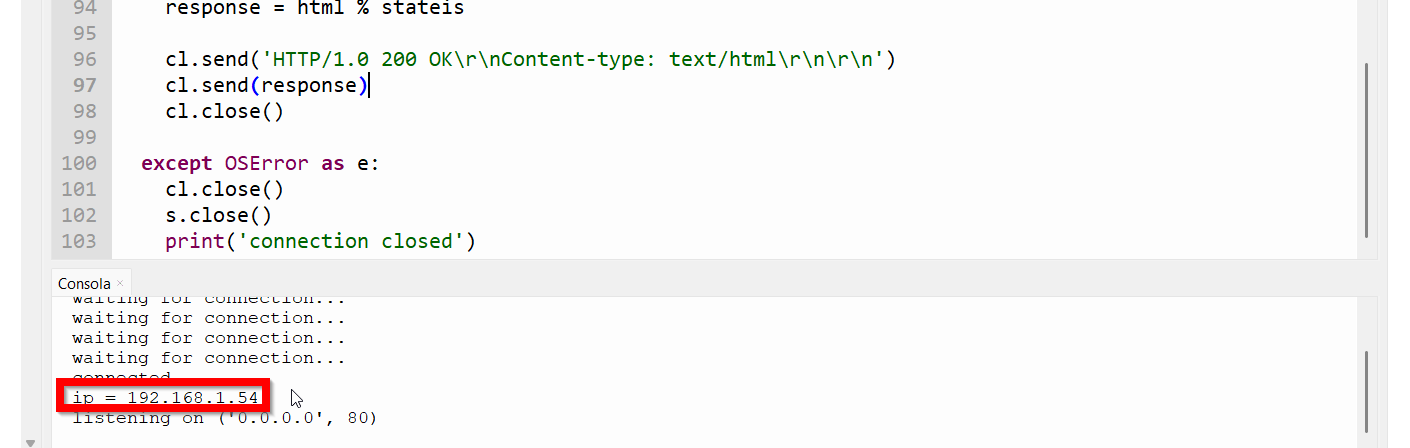](https://libros.catedu.es/uploads/images/gallery/2024-12/2024-12-28-22-40-50-thonny-c-users-i5hp-downloads-wifi-py-at-97-22.png) Otro truco es ejecutar un programa de rastreo de IPs como el [Wireless Network Watcher](https://www.nirsoft.net/utils/wireless_network_watcher.html) y ver la IP de la Raspberry. O poner una IP estática ver [aquí](https://randomnerdtutorials.com/raspberry-pi-pico-w-wi-fi-micropython/) [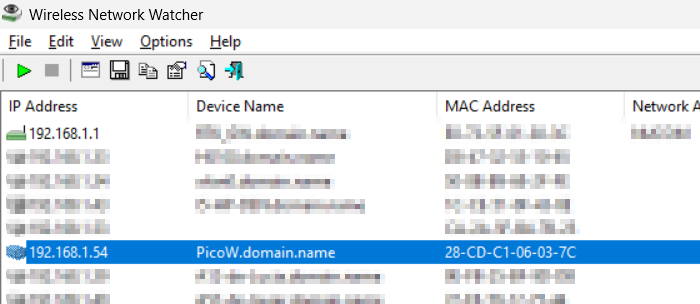](https://libros.catedu.es/uploads/images/gallery/2024-12/2024-12-28-22-45-08-wireless-network-watcher.png) Abrimos un navegador y ponemos la IP de la Raspberry en mi caso 192.168.1.54 [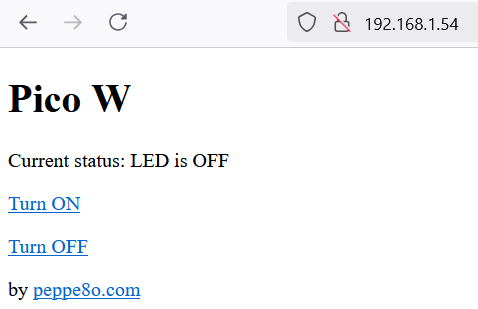](https://libros.catedu.es/uploads/images/gallery/2024-12/2024-12-28-22-53-21-pico-w-mozilla-firefox.png)Si os sale el error OSError: \[Errno 98\] EADDRINUSE es porque no se ha cerrado bien la conexión, desconectar PicoBrikcs y volverlo a conectar y solucionado